

Prerequisites
- Install the Vega SDK. The SDK includes the tools for you to create, build, and run your apps.
- Open Visual Studio Code or download it.
Build a Hello World app
Step 1: Create a new app from a Vega template
-
In VS Code, select the Vega extension icon
 in the activity bar.
- Click the + icon to create a new project.
- Select the template .
- Choose a project directory or create a new one, then open it.
-
Name the project, package, and press Enter after each. This example uses the following names:
App name:
VegaProjectPackage name:com.myorg.VegaProject -
A workspace prompt appears. Name and save your workspace to a location of your choice.

Step 2: Build the app in test mode
-
In the Vega extension, locate and select the VegaProject in your workspace.

- Set build mode to Debug. This enables fast-refresh by default, so any saved changes to your app are reflected on your app in real-time.
-
Select the build button next to VegaProject.

-
Check the Output tab in VS Code for the build success message.
Step 3: Run in Vega Virtual Device (VVD)
Run the app in Vega’s Fire TV Stick simulator, the Vega Virtual Device (VVD).-
In the extension panel, locate VirtualDevice:Tv under Devices and press the Play button.

- Wait for the VVD window to open.
-
Select the Play button next to VegaProject.

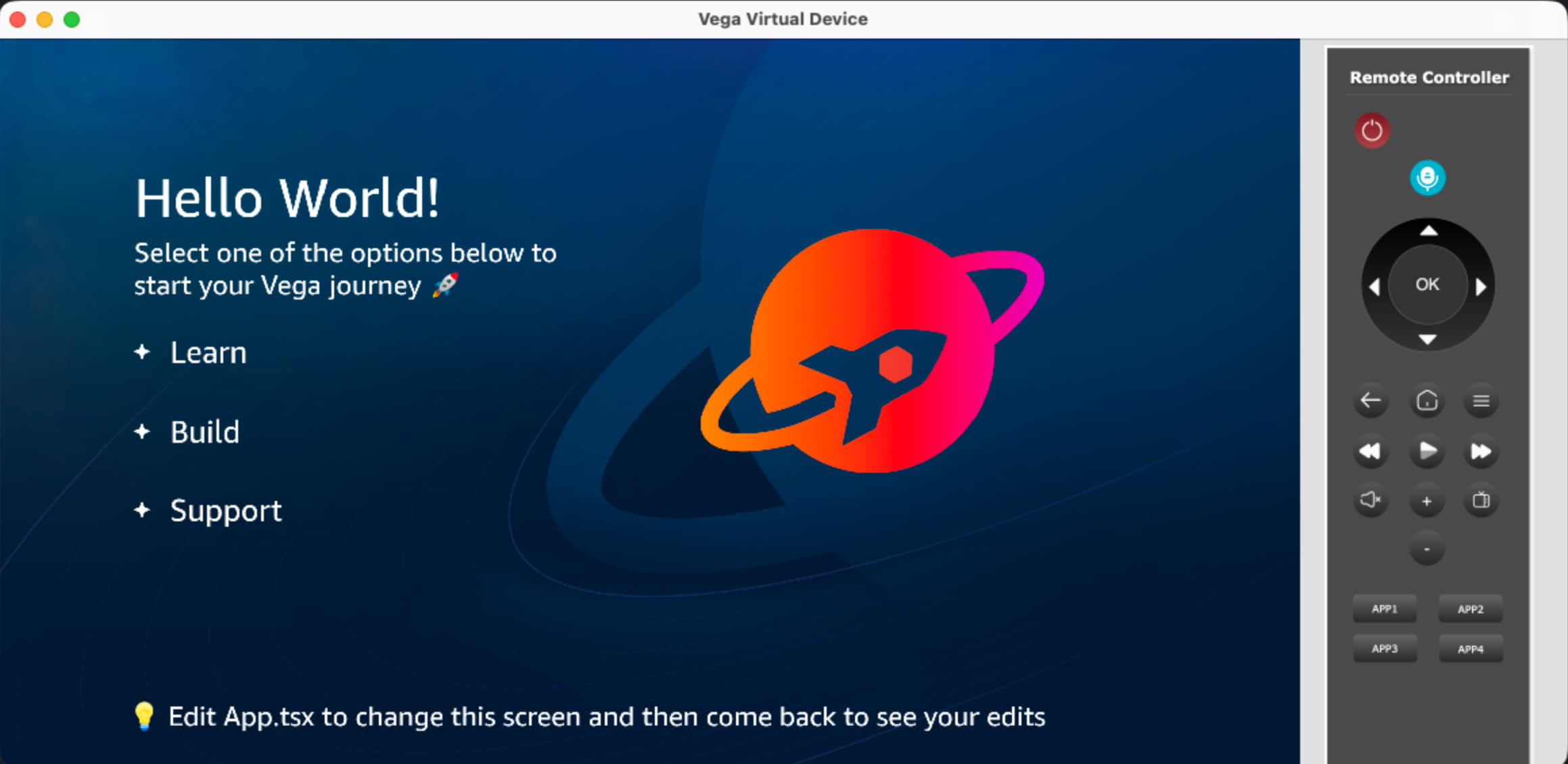
Vega's Hello World app template in the VVD
Additional resources
Now that you’ve created your first Vega app, explore these resources to learn more:- Accelerate your app development with Vega’s sample apps.
- Complete the Vega video app tutorial. The tutorial walks you through detailed steps to create a video app with the W3C Media Player.
- See all build options and experiment with other templates and native modules.
- Review additional development options in the documentation.
