

Enable System X-Ray
See Invoke the Developer Tools Menu for instructions on showing the Developer Tools menu. When enabled, you see a Developer Tools menu: (To close the dialog box, click the back button on your remote control.)
Toggle System X-Ray to On.

What Appears When You Enable System X-Ray
After you turn on System X-Ray, a long rectangular overlay appears on the screen showing different kinds of information: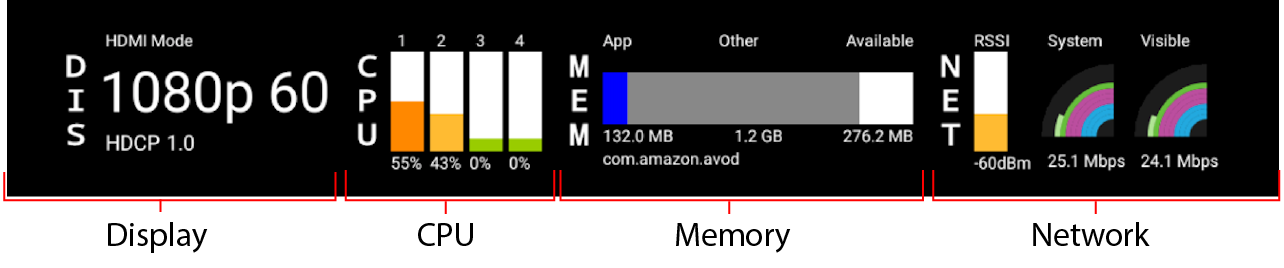 The System X-Ray overlay remains in place as you change apps or navigate around on Amazon Fire TV. The System X-Ray overlay is divided into four sections:
Display (DIS)
 The Display section shows the following:
- HDMI Mode: Shows the physical height of display in pixels and the refresh rate in frames per second. For example, if the Display shows “1080p 60,” it means 1080 pixels is the physical height of the display, and 60 is the refresh rate in frames per second.
- HDCP: Shows the HDCP (High-bandwidth Digital Content Protection) version used by Amazon Fire TV to encrypt content that is sent through the HDMI cable to the television.
CPU
 The CPU (Central Processing Unit) section shows the % CPU usage of each core of the device at real time with different colors. Each column represents a different core. The CPU usage is depicted as follows:
- 0% to 33% (low utilization) shows in green
- 34% to 66% (moderate utilization) shows in orange
- 67% to 100% (high utilization) shows in red
Memory
 The Memory section has a bar with the labels App (blue), Other (gray), and Available (white):
- Foreground App Memory (blue): App — shows the memory usage (specifically, the Proportional set size (PSS) of the foreground application, not the GPU memory) and the package name of the foreground app. The package name of the foreground app is displayed under the bar. If you’re on the home screen,
com.amazon.tv.launcherappears as the app name. - Other memory (gray): Other — shows the memory usage by other applications.
- Available memory (white): Available memory — shows the available (free) memory in the device.
- Memory leaks in an app
- Excessive memory consumption
- Low memory conditions on the device
Network
 The Network section shows the strength of the WiFi signal along with the download rates across the entire device and for the visible app. The labels are as follows:
- RSSI (Received Signal Strength Indicator): Shows how strong the WiFi signal is, measured in dBm (value of radio signal). The bar indicates the signal strength and is color-coded using the same color coding scheme as the CPU section to indicate the severity of a problem (green is strong, orange is average, and red is weak). The number is always negative – with better signal strength, the number moves closer to 0. If the Amazon Fire TV has a wired connection and is not using WiFi, RSSI is not shown.
- System: Measures how many bits per second are being actively downloaded to the device (including both visible and background apps). This is not the available bandwidth. If 0 bps is displayed, no data is being downloaded at the moment.
- Visible: Measures how many bits per second are being actively downloaded by the visible (also called foreground) app. This number will never be higher than the system download speed. The data is aggregated over two hours.
- Connectivity issues
- Slow download speeds
- Lower quality streams (selected by the media player)
