

- Sideload and test APKs to observe app behavior during installation and uninstallation
- Install, launch, and exit
- Navigate to in-app sign-in and sign-up screens
- Browse content from Appstore
- Make in-app purchases on live downloaded apps
- Navigate and control the app using the virtual remote
Connect remotely to devices
To connect to a particular device- On the Devices tab, choose the image of the device to start a remote session. Alternatively, on the Details tab, select Use on the device you want to interact with.
- After you connect to the device, sign in with your Amazon account.

Live device control tab
- On the Remote tab, access a virtual remote to navigate the Fire TV.
- On the Dashboard tab, in the App Upload section, upload an app binary from your local device.
- On the Dashboard tab, in the Shell section, enter ADB commands.
- On the Dashboard tab, in the Remote Debug section, start a remote debug session. For instructions, see Remote Debug.
- On the Screen tab, take screenshots and videos. Make sure to download any screenshots and videos before closing the session.
- On the Logs tab, generate logs for debugging or validations.
- Navigate to Amazon Appstore and download any live app.
Navigation
When you access a remote device, you can use a virtual remote, your keyboard, or a keyboard touchpad to navigate. For a Fire TV, use the virtual remote for the best experience. The following image displays the keyboard-to-Fire TV remote mapping.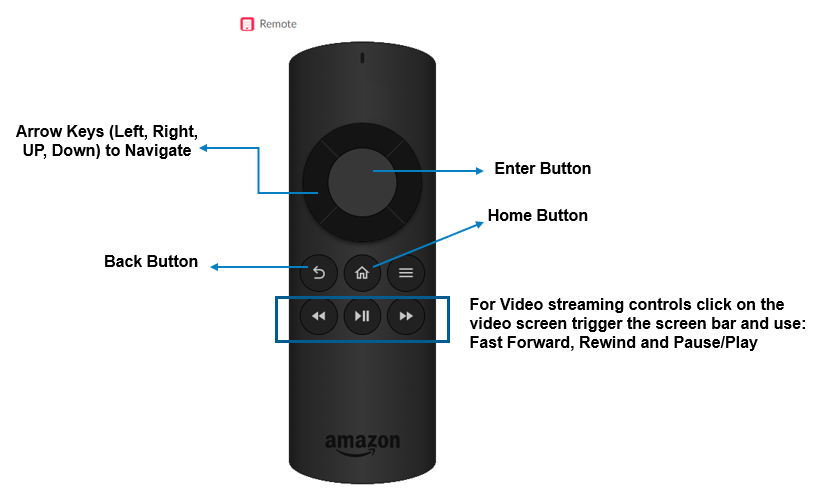 Text description
- D-pad navigation: Use the LEFT, RIGHT, UP, and DOWN arrow keys on the keyboard.
- Home button: Use the Home button icon on the virtual remote in the Remote tab.
- Center D-pad button: Use the ENTER key on the keyboard.
- Back button: Use the Back button icon on the virtual remote in the Remote tab.
- For video streaming controls, click the video screen to activate the seek bar. Then, use the RIGHT arrow key to fast-forward, LEFT to rewind, and SPACEBAR to play or pause.
Guidelines
Use the following guidelines for the best experience with Live Device Interaction.Do
- Have stable internet with good speed and bandwidth (greater than 100 Mbps).
- Sign in to your Amazon account before using the Fire TV.
- Save any device PIN that was enabled during device registration.
- Save your logs, recordings, and other generated data before closing the remote session or window.
