In the Store Listing Information section of the App Setup screen, you provide descriptions and image assets for your app. Description In the Description section, provide long an…
In the Store Listing Information section of the App Setup screen, you provide descriptions and image assets for your app.
Description
In the Description section, provide long and short descriptions for your app’s listing in the Appstore. Details for each field follows.
Display title
Enter the app title that will be displayed in your app’s listing on both the Appstore website and on devices. The display title should be brief and does not have to be the same as the App title field in the General Information section. If you would like to refer to Amazon or any Amazon product or service (including Kindle or Fire) in the title of your app, refer to the Amazon Trademark, Brand, and Marketing Guidelines.
Short description
Enter a short description of your app that is appropriate for display on a device. This field is limited to 2,000 bytes - equivalent to 1,200 English characters, 400 Japanese characters, or 400 Chinese characters. Consider keeping this description very brief. Avoid paragraph breaks, as they get stripped out. The Fire TV UI displays only the first 200 characters, then shows an ellipsis to read more. Optimize your short description to include the most important information up front. If your app allows in-app purchasing, a note gets automatically appended to the end of your description.
Long description
Enter a lengthier description of your app that is appropriate for use on the Amazon Appstore website. The maximum length is 4,000 characters. The long description appears on the Appstore website and on tablets running Fire OS 5 and higher. It doesn’t appear on Fire TV devices. All text input fields (including the short description and other fields) are plain text only. Do not enter HTML markup – it will fail testing and delay your app’s publishing.
Product feature bullets
Add three to five key features of your app, one feature per line. Press Return after each feature. The Developer Console automatically converts each item to a bullet item each time that you press Return. These bullet points appear in the Product features section of your app’s retail web page.
Add keywords
In this optional field, enter comma-separated search terms that will help customers find your app in the Amazon Appstore. On Fire devices, these keywords can be helpful in surfacing your app when users search either by text or with voice.
Assets
In the Assets section, submit a collection of images that Amazon will use to represent your app in its Appstore listing and for promotional purposes. Each image asset has unique specifications and guidelines detailed in the tabbed documentation sections below. Additionally, all images must adhere to the Amazon Appstore Content Policy, which includes obtaining any rights or licenses for media with intellectual property protection.
Image asset guidelines
The Assets section has two tabs:
Fire Tablet: Image assets required for the Appstore listing on Fire tablets and the Amazon website.
Fire TV: Image assets required for the Appstore listing on Fire TV devices (used for both Fire OS and Vega OS).
Tablet assets
Icons
Screenshots
Promotional Image
Video
Icons (Required)Two icons are required – 114 x 114px (small icon) and 512 x 512px (large icon). Both are used to represent your app throughout the Amazon Appstore and on Amazon devices, so use high quality images. The small icon can be a simplified version of the large icon’s design that looks better in thumbnail size, or both icons can simply be the same design. The icons will be scaled down to a smaller size.
Specifications:
Detail
Requirement
Small icon size
114 x 114px
Large icon size
512 x 512px
Format
PNG (transparent)
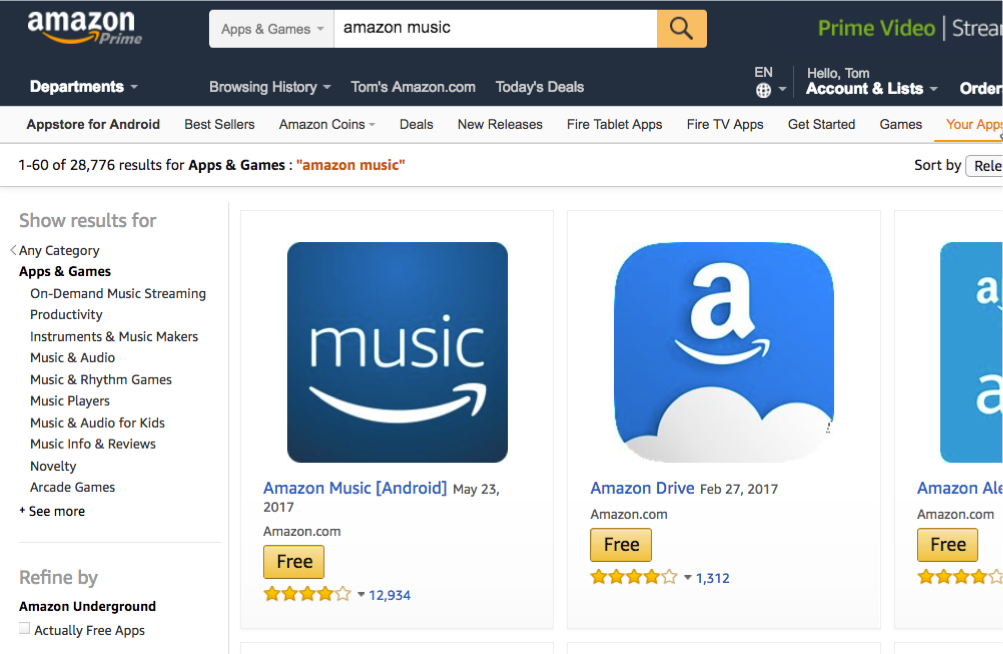
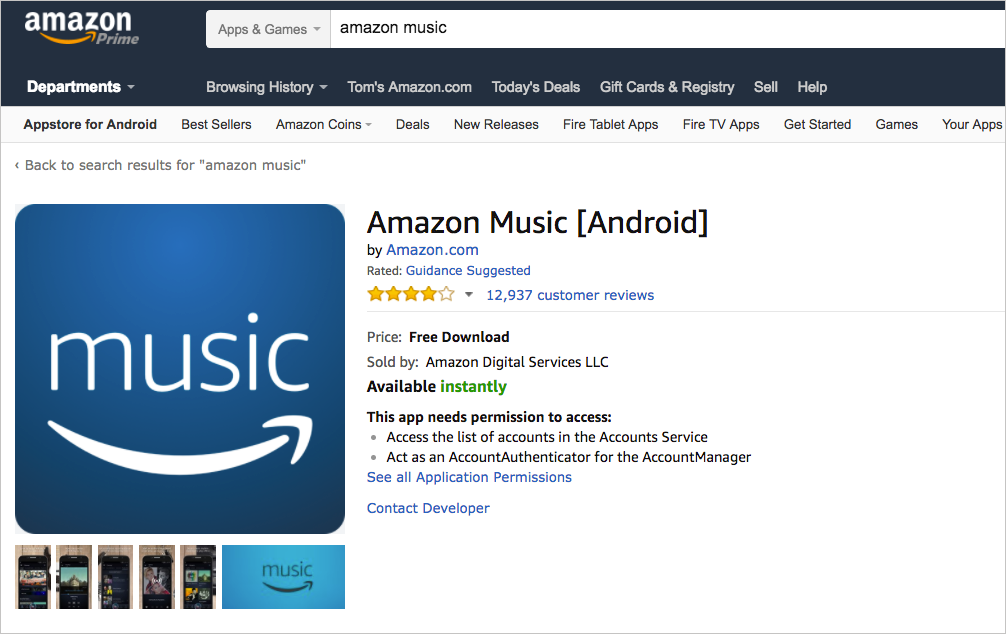
Here’s a sample small icon (114px x 114px) in the context of the Appstore:Here’s a sample large icon (512px x 512px) in the context of the Appstore:Do not just scale up the PNG image of your icon — doing so results in a blurry image.Design Best PracticesDO:
Use original assets. App icons should reflect original graphic assets related to your app.
Use contrast. Contrast will make the app icon distinct even when it is scaled down.
Use balance. Use imagery that has a sufficient amount of white space.
Use fewer subjects. Fewer characters in app icons is preferred.
DO NOT:
Use wrong assets. There should be no marketing slogs or studio badging. Only logos or key art.
Make it illegible. Do not overlap logos on major characters or on a busy background.
Apply wrong styling. Key art should go to the edge of the image. Do not include borders or rounded corners.
Screenshots (Required)Screenshots show images from your app to give users a better sense of what your app offers. Include a minimum of 3 and a maximum of 10 screenshots. For technical details on taking screenshots on Fire OS, see Taking screenshots on Fire devices, and for Vega OS, see gwsi-tool-screenshooter in the Vega OS developer documentation.
Specifications:
Detail
Requirement
Size
Depending on the devices you are targeting, allowable image sizes are as follows:
800px × 480px
1024px × 600px
1280px × 720px
1280px × 800px
1920px x 1080px
1920px × 1200px
2560px × 1600px
Format
PNG or JPEG (landscape or portrait mode)
Design Best Practices:DO:
Use cinematic imagery. Use imagery that is engaging and has a pleasing composition.
Use different scenes. Use screen stills that display different scenes of the app.
Use character-centric imagery. Use imagery that includes major characters or notable content.
Show logical progression. Highlight the app’s most interesting features in a logical progression that mimics a typical user’s experience. Begin at the broadest area of user interaction (for example, the main menu), comprehensively document the app’s main feature(s), and explore the app’s peripheral features, menus, and settings.
Focus on core functionality. Focus on the app’s core functionality, while touching on one or two of its less prominent features.
DO NOT:
Use contextual imagery. Do not use photographs of someone using the app. Only show the app itself.
Display wrong device type. Screenshots should reflect the app experience on the tablet and not additional devices.
Show personal information. If your screenshots will display personal information (such as account names, login information, or social networks), populate the fields with dummy information.
Promotional Image (Optional)The Promotional Image is used to promote your image in select placements. The Promotional Image should not be a screenshot but rather an attractive representation of your app that includes your app’s name. It must be easily read in a scaled-down version.
Specifications:
Detail
Requirement
Size
1024 x 500px
Format
PNG or JPEG (landscape)
Design Best Practices:DO:
Emphasize your brand. Include the title of your app and a strong visual image to reinforce the brand, form, or function of the app.
Keep it legible. The entire image should be legible when scaled down to 300 x 146px.
DO NOT:
Crowd the edges. All text should be at least 50px from any edge.
Include redundant content. Do not include any content that is presented elsewhere in the shopping experience, such as price, screenshots, descriptive text, ratings, or buttons.
Video (Optional)You can include up to 5 videos related to your app. If you upload more than one video, only the first video is shown to customers on the Appstore website. However, all of the videos will be available when customers view your store listing on devices.
Specifications:
Detail
Requirement
Size
720px high x 1080px wide (4:3 or 16:9)
Format
MPEG-2, WMV, QuickTime, FLV, AVI, H.264 MPEG-4
Bitrate
1200 kbps or higher
Duration
Duration no longer than 60 minutes (3600 seconds)
Design Best Practices:DO:
Demo the app. Eliminate visual and audio distractions that are unrelated to the content of your app. If possible, capture video output directly from your app.
Make it professional. If capturing video by using a camera, use a tripod and maximize the visibility of your app by avoiding harsh glare and reflections.
Reflect the user experience. You may insert additional text, audio, and images into your videos, but the video must showcase/demo the app content and remain relevant to the actual user experience.
DO NOT:
Show personal information. If the app requires you to input personal information (such as account names, log-in information, or social-network feed), populate the fields with dummy information.
Exclude Amazon devices. Videos must not feature a device or operating system that is not supported by Amazon without also featuring one that is (for example, if iOS is shown or mentioned, Fire OS must be as well).
Fire TV assets
App Icon
Screenshots
Background Image
Feature Rotator
App Icon (Required)The App Icon appears within a row of other app icons in the Fire TV user interface.
Specifications:
Detail
Requirement
Size
1280 x 720px
Format
PNG (no transparency)
Here’s a sample App Icon:
The App Icon
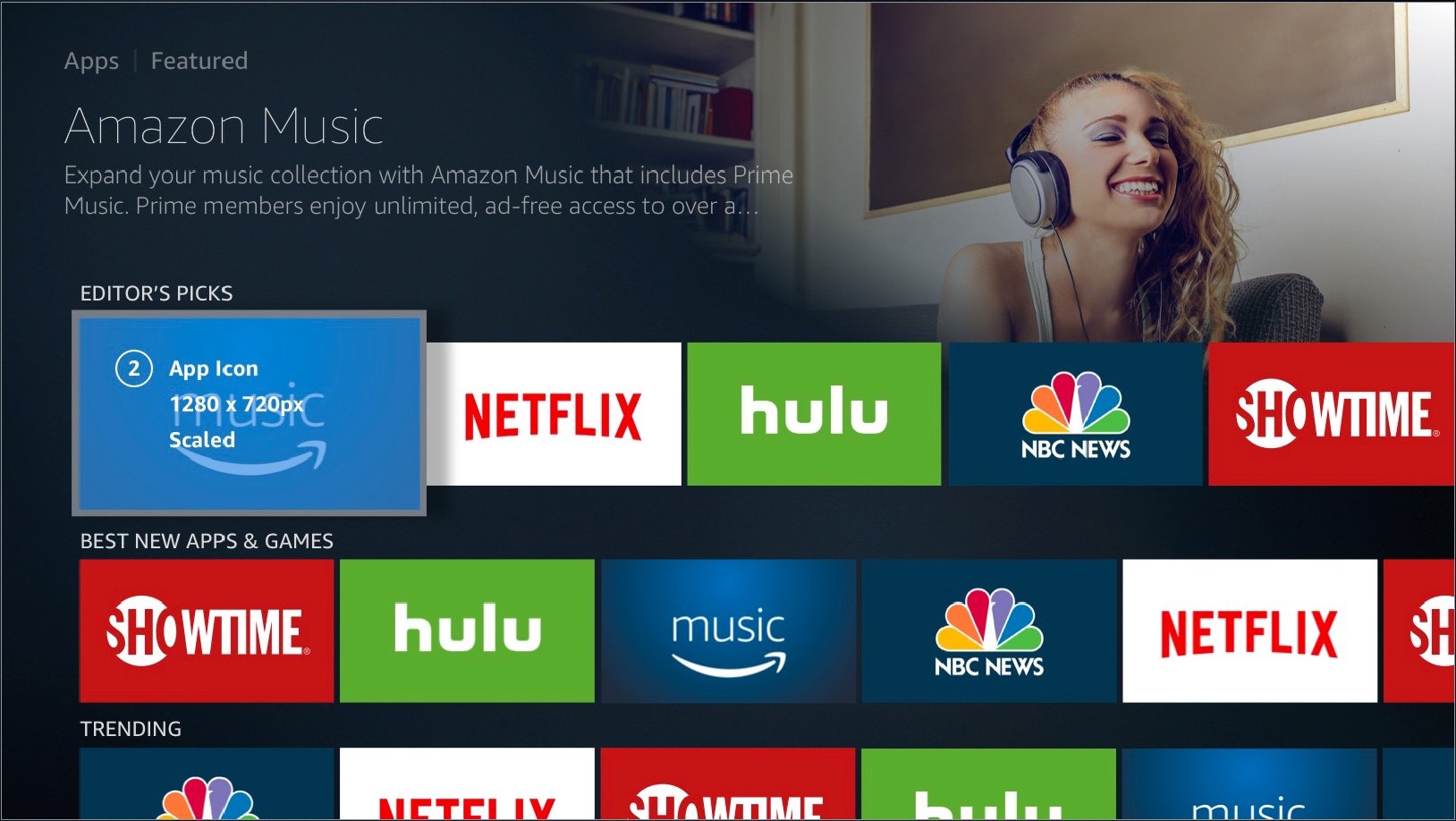
Fire TV Context:The App Icon appears on Fire TV in the following context:
The App Icon highlighted
The App Icon without highlighting
Content Safe Area:The following badges may appear superimposed on the App Icon:
App icon with badging over the image
To ensure your App Icon looks good even with badging (download icons, progress bars, etc.), place your main subject and title art within the content safe area. Artwork that falls outside of the safe area may be covered by badges.
Content safe area for the App Icon
Imagery may be obscured by opaque badging elements. Imagery may be obscured by translucent or typographic UI elements. Imagery is safe. The 882 x 448px area represents where the main subject and title art are safe.Design Best Practices:Follow these guidelines when designing your App Icon:DO:
Use original assets. App icons should reflect the original developer-submitted assets.
Use contrast. Contrast will make the app icon distinct even when it is scaled down.
Use balance. Use imagery that has a sufficient amount of white space.
Use fewer subjects. Fewer characters in app icons is preferred.
DO NOT:
Use wrong assets. There should be no marketing slogs or studio badging. Only logos or key art.
Make it illegible. Do not overlap logos on major characters or on a busy background.
Apply wrong styling. Key art should go to the edge of the image. Do not include borders or rounded corners.
If you don’t provide the required Fire TV assets, Fire TV will apply a default creative treatment to the images to scale them to fit the required spaces. For example, if the required image size isn’t proportional for the required space, your image will be placed on top of a background image that fills the space correctly.
Screenshots (Required)Screenshots show images from your app to give users a better sense of what your app offers. Include a minimum of 3 and a maximum of 10 screenshots. For details on taking screenshots on Fire OS, see Taking screenshots on Fire devices, and for Vega OS, see gwsi-tool-screenshooter in the Vega OS developer documentation.
Specifications:
Detail
Requirement
Size
1920 x 1080px (landscape)
Format
JPG or 24-bit PNG (no transparency)
Here’s an example screenshot from the Amazon Music app:
Sample screenshot
Fire TV Context:The following image shows screenshots in the context of the Fire TV UI:
Screenshots highlighted
Screenshots without highlighting
Content Safe AreaScreenshots aren’t covered by badging, so you don’t have to worry about placing content inside a safe area.Design Best Practices:DO:
Use cinematic imagery. Use imagery that is engaging and has a pleasing composition.
Use different scenes. Use screen stills that display different scenes of the app.
Use character-centric imagery. Use imagery that includes major characters or notable content.
Show logical progression. Highlight the app’s most interesting features in a logical progression that mimics a typical user’s experience. Begin at the broadest area of user interaction (for example, the main menu), comprehensively document the app’s main feature(s), and explore the app’s peripheral features, menus, and settings.
Focus on core functionality. Focus on the app’s core functionality, while touching on one or two of its less prominent features.
DO NOT:
Use contextual imagery. Do not use photographs of someone using the app. Only show the app itself.
Display wrong device type. Screenshots should reflect the app experience on the TV and not additional devices.
Show personal information. If your screenshots will display personal information (such as account names, login information, or social networks), populate the fields with dummy information.
Background Image (Required)When users scroll across your app from a browse page, the Background Image appears in the upper-right corner of a mini-detail page.
Specifications:
Detail
Requirement
Size
1920 x 1080px (landscape)
Format
JPG or 24-bit PNG (no transparency)
The following is an example of a Background Image:
Sample Background Image
Fire TV ContextThe Background Image appears on Fire TV in the following context:
The Background Image highlighted
The Background Image without highlighting
When users click your app icon, the Background Image can also fill the entire background.
The Background Image highlighted
The Background Image without highlighting
Content safe area:The main focus element of the image must be placed within the content safe area. Artwork that falls outside of the safe area might be covered by UI elements.
Content safe area for Background Image
Imagery may be clipped here. Imagery may be obscured by opaque elements. Imagery may be obscured by translucent or typographic UI elements. Imagery is safe. The 1214 x 830px area represents where the main subject of the image should be placed.Design Best Practices:DO:
Use cinematic imagery. Use imagery that is engaging and has a pleasing composition.
Use relevant imagery. Use imagery that is relevant to the app experience. Don’t show a person using the app, the controller, the TV, or the surrounding room. Just show the app itself.
Use different imagery. When possible, use different imagery than the app icon.
Use character-centric imagery. Use imagery that includes major characters or notable content.
Place subject right. The main subject should be to the right side of the image when possible.
DO NOT:
Place subject left. The main subject should not be on the left side because the UI may obscure it.
Crop heads and faces. Use the safe zones to verify placement of heads and faces.
Embed logos or titles. Logos and titles should not be in the background.
Use busy imagery. Do not use imagery that has too many subjects or fine detail.
Show other device types. Amazon Appstore offers many apps that also exist on other device types (such as smartphones and tablets). Assets should reflect the experience of the app on Fire TV.
Feature RotatorFeature Rotator is the most visible placement of the Fire TV UI and is located above the fold on Home, Movies, TV, Apps, and Games tabs. Each of these tabs contains a placement with slots for six pieces of content. Feature Rotator ads are exclusive to entertainment advertisers. Feature Rotator is composed of three assets: a background image, logo image, and trailer video.For more details on the Feature Rotator, see Feature Rotator on Amazon Advertising.


 Here’s a sample large icon (512px x 512px) in the context of the Appstore:
 Do not just scale up the PNG image of your icon — doing so results in a blurry image.Design Best PracticesDO:



 Imagery may be obscured by opaque badging elements.
 Imagery may be obscured by translucent or typographic UI elements.
 Imagery is safe.
 The 882 x 448px area represents where the main subject and title art are safe.Design Best Practices:Follow these guidelines when designing your App Icon:DO:


 Imagery may be obscured by opaque elements.

