
システム開発者ツールでアプリをデバッグする方法
開発者ツールメニューには、アプリに関するリアルタイム指標などの情報を提供する各種オプションが用意されています。トラブルシューティング・開発・テストなどにぜひ活用してください。
この記事では、Android Debug Bridge(ADB)で接続していない開発者がライブデバッグを行うための、システムの開発者ツールメニューについて説明します。この記事では、ネットワークプロキシの設定方法についても説明します。開発者アカウントの設定は不要です。表示されるオーバーレイは主にアプリのパフォーマンス確認用ですが、ネットワークプロキシは開発段階で使用されます。
開発者ツールメニューの起動
開発者ツールメニューを起動する方法は複数あります。
- リモコン: D-Padで [選択] ボタンを1秒間長押しします。次に [選択] ボタンを押したまま[下]ボタンも押します。そのまま両方のボタンを3~4秒間長押しします。次に、両方のボタンを放し、リモコンのメニューボタンを押しますうまくいかない場合は、時間を空けず、[選択] と [下] を同時に長押ししてみてください。
- Vega CLI: Vega TVでVega CLIが有効になっていて、コンピューターが接続されている場合は、
vega device launch-app -appName com.amazon.ssm.mainコマンドを実行してダイアログボックスを起動できます。
以下は、開発者ツールメニューのオプションが表示されたスクリーンショットです。
![[System X-Ray]、[System X-Ray Configuration]、[Safe Zone]、[Network Proxy]、[Launch Network Diagnostics] メニュー項目が示された開発者ツールのスクリーンショット。](https://m.media-amazon.com/images/G/01/mobile-apps/dex/vega/system-developer-tools/developer-tools.png)
各種パネルの説明については、以下を参照してください。
System X-Ray
System X-Rayはシステムの指標を瞬時に収集し、画面上にオーバーレイとして表示しますこれをオンに切り替えると、無効化するかデバイスの電源が切れるまでオーバーレイが画面に表示されます。
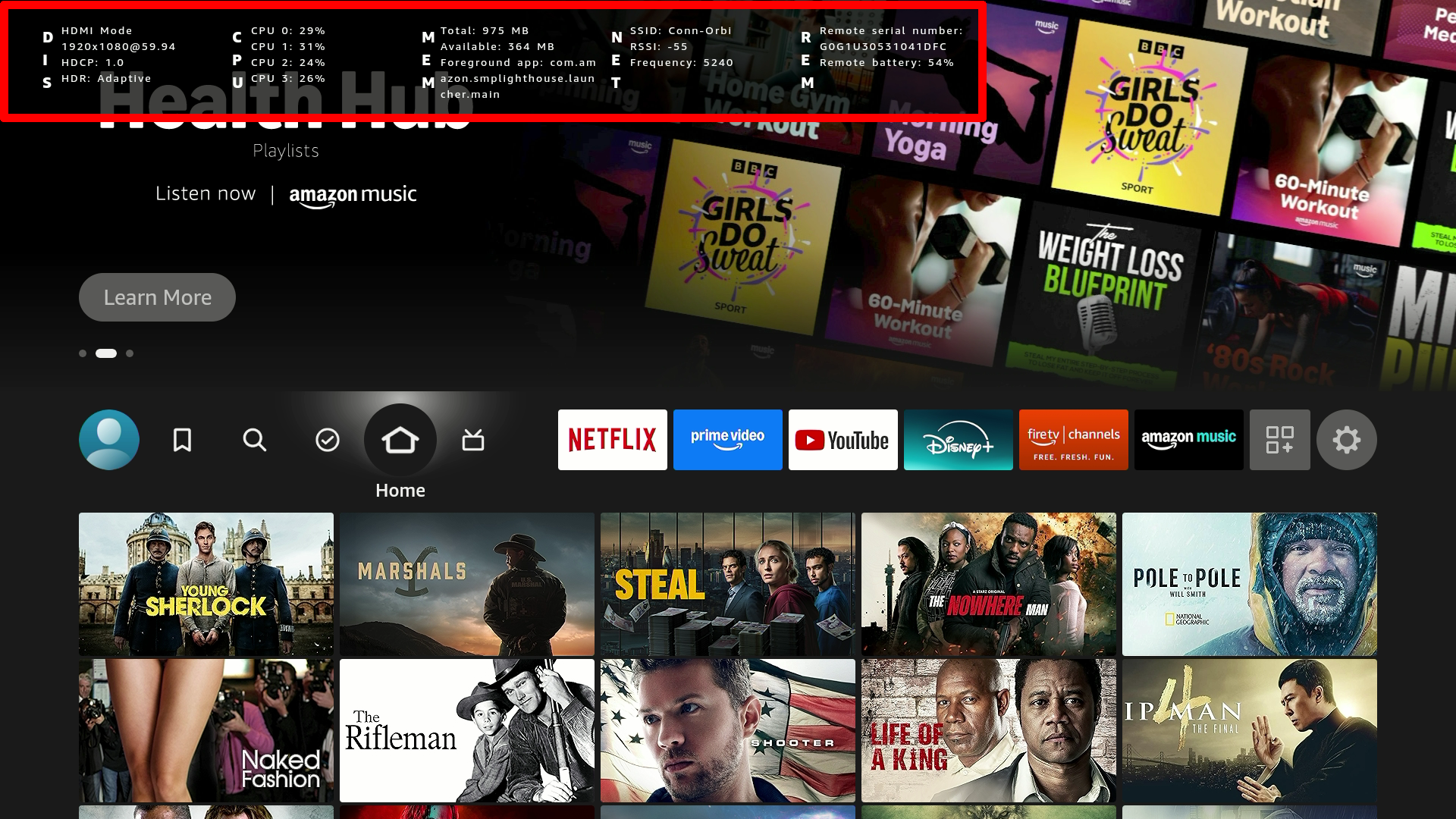
System X-Rayのオーバーレイには、以下の情報が含まれます。
- ディスプレイ
- CPU
- MEM(メモリ)
- ネットワーク
- リモコン
System X-Rayの詳細については、System X-Rayを参照してください。
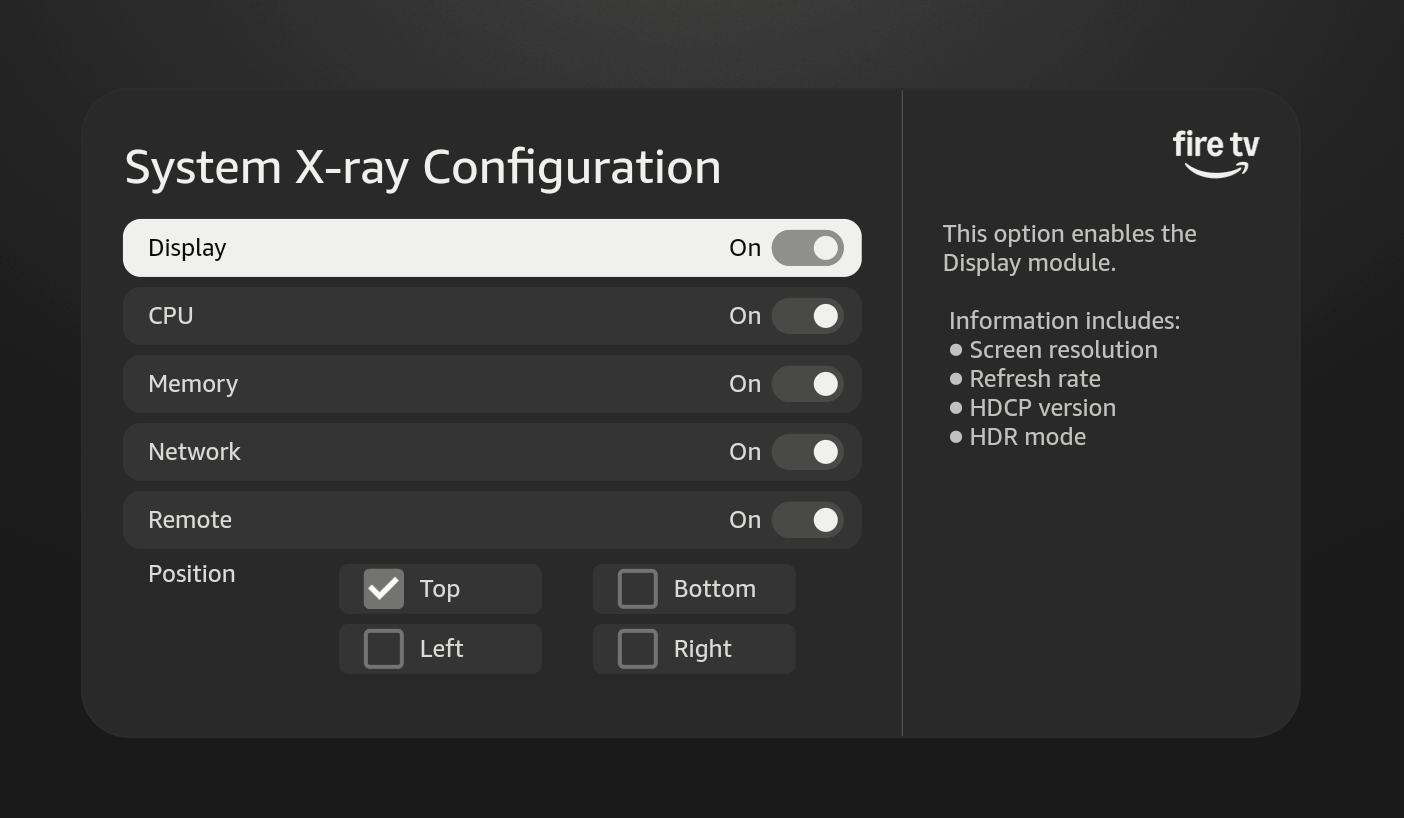
設定パネル
設定パネルでは、System X-Rayのオーバーレイをカスタマイズすることや、どのフィールドを画面のどこに表示するかを設定することができます。
セーフゾーン
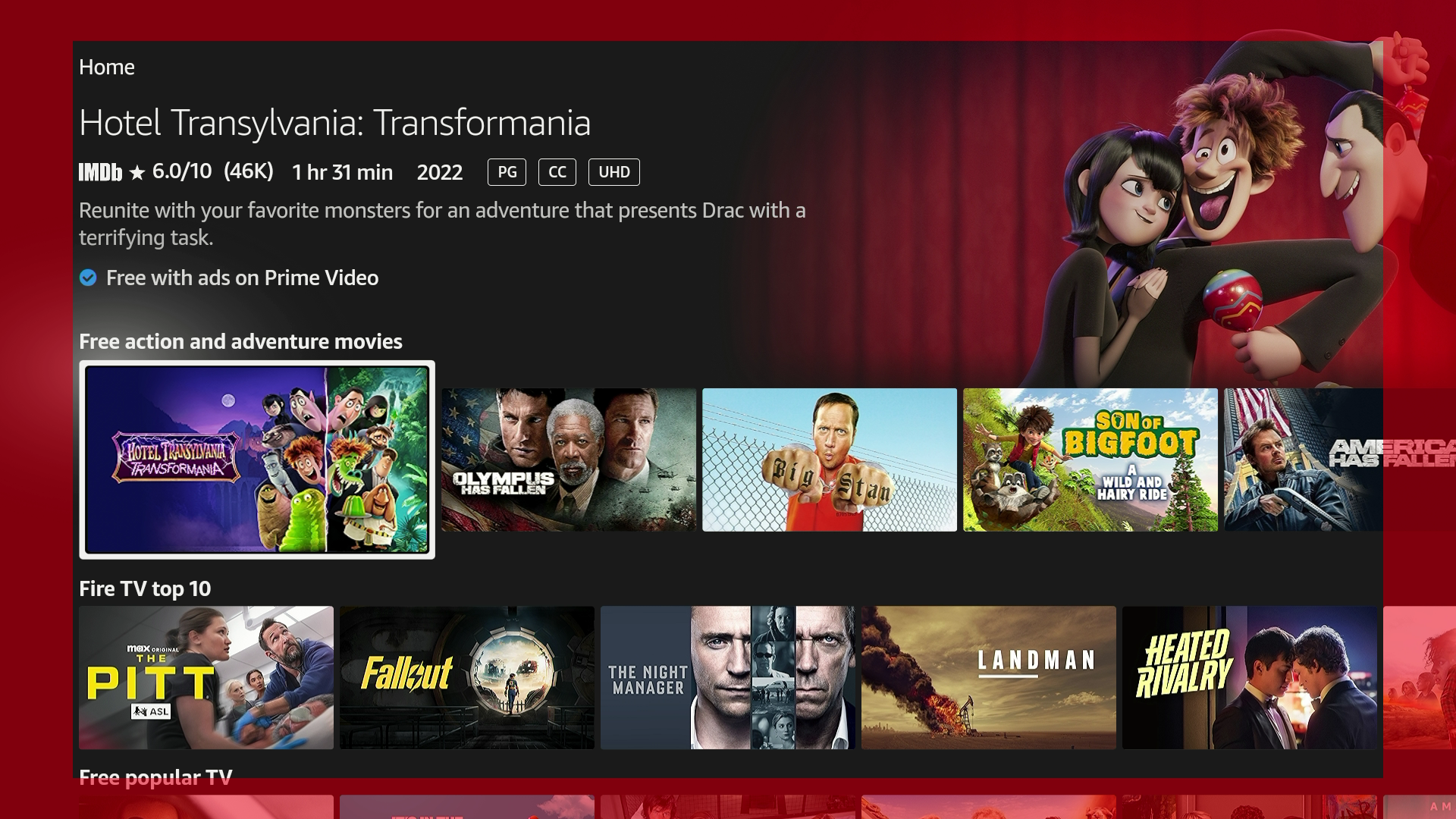
TVによっては、画面にオーバースキャンが使用されていることがあります。オーバースキャンとは、モニターの差異に対応するため、表示画面の外側の情報を一部切り捨てて表示することです。そのため、オーバースキャン領域には重要な情報を表示しないでください。
オーバースキャン領域を表示するには、[セーフゾーン]をオンにします。オンにすると、オーバースキャン領域が可視化されるため、それらの領域に情報を配置しないようにできます。
ネットワークプロキシ
アプリがリモートサービスまたはウェブサイトと通信を行う場合、生成されるHTTPまたはHTTPSトラフィックを検査できると便利です。検査対象となるトラフィックには、アプリによって開始されたリクエスト、受信した応答、Cookieやキャッシュ情報などを含むHTTPヘッダーなどがあります。詳細については、ネットワークプロキシを参照してください。
![ネットワークプロキシのオプション [None]、[Auto]、[Manual] が示され、さらに [Proxy hostname]、[Proxy port]、[Bypass proxy for] フィールドが表示されているスクリーンショット。](https://m.media-amazon.com/images/G/01/mobile-apps/dex/vega/system-developer-tools/network-proxy.png)
ネットワークアドバイザーの起動
ネットワークアドバイザーは、ネットワーク接続の強度やチャネルなどの詳細情報を確認できるネットワーク分析ウィンドウを起動します。問題がある場合、推奨される修正方法が提示されます。
関連トピック
詳細については以下を参照してください。
Last updated: 2026年2月17日
