
构建您的应用
本页引导您使用Vega SDK构建应用。SDK包括多个模板和两种构建方法: Vega Studio和Vega CLI。Vega Studio是一个VS Code扩展,它通过命令面板提供命令,而Vega CLI则提供基于终端的命令。
如果您不熟悉使用Vega构建应用,请参阅构建Hello World应用。
所有构建选项
Vega提供多种途径,供您根据自身具体要求创建自定义应用。您可以从以下构建方法中进行选择:
使用Vega Studio构建应用
Vega Studio是VS Code中的一个扩展,让您可以在Fire TV和其他Vega支持的平台上创建、构建、运行、测试和调试应用并分析其性能。本节提供了使用Vega Studio构建Vega应用的步骤。
先决条件
步骤1: 创建Vega项目
-
打开Visual Studio Code (VS Code)。
-
从活动栏中选择Vega扩展图标
 ,打开Kepler Studio面板。
 -
单击Projects(项目)部分中的+(创建Vega项目)图标。
-
选择项目模板。
- hello-world - 使用此项目模板创建依赖于React Native v0.72的应用。
- basic-turbo-module - 使用此项目模板创建自定义Turbo模块。
- idl-turbo-module - 使用此项目模板创建与所有支持的React Native版本和原生IDL API兼容的应用。
注意: 您也可以使用命令面板显示项目模板。对于Mac,按⌘ + shift + p。对于Linux,按Ctrl + shift + p然后输入“Kepler Project: Create a new Kepler project”。 - 为您的项目选择一个目录。
-
为您的应用提供一个项目名称(不含空格或特殊字符)。
例如: My3PSample
输入项目名称后,请务必按
Enter。 -
以如下格式输入项目的程序包名称:
<顶级域名>.<公司名称>.<应用名称>。例如:com.org.vegaproject
输入项目的程序包名称后,按下
Enter。Vega Studio根据您选择的模板创建您的项目。当您在有项目打开的情况下选择
basic-turbo-module或idl-turbo-module模板时,Vega Studio会创建一个多根工作区。新项目将以文件夹的形式显示,因此您可以使用Turbo模块作为依赖项,并在同一VS Code窗口中进行开发。Vega Studio将新的basic-turbo-module作为依赖项添加到打开的项目。如果您在创建basic-turbo-module期间打开了多个Vega应用,该扩展会提示您选择目标应用。
步骤2: 构建Vega应用
-
在Kepler > Projects中,选择您的项目。

-
在Build Mode(构建模式)部分中,选择所需的构建模式(Debug [调试] 或Release [发布])。

-
从Devices(设备)部分选择播放按钮
 以启动目标虚拟设备。
 -
选择项目名称旁边的构建按钮
 以开始构建过程。
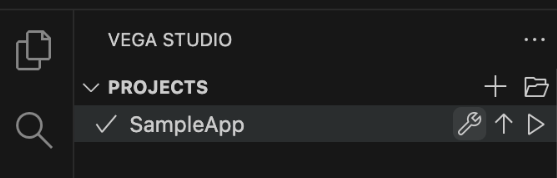

查看构建输出
- 转到VS Code中的集成终端面板。
- 选择输出选项卡。
-
从下拉列表中选择Kepler。
您应该看到info build-kepler completed。如果构建失败,请通过展开错误消息来识别问题。
步骤3: (可选)配置自定义端口
您可以指定端口8081以外的自定义端口。
- 在VS Code中,前往Code > 首选项 > 设置。
- 在搜索框中,输入React Native Port。
- 输入您的端口号。
-
出现提示时重新加载VS Code。
当您启动调试会话时,Vega Studio会自动在
/data/shared_preferences.json中配置设备上的共享首选项。
步骤4: 运行和测试Vega应用
在Vega虚拟设备上
-
导航到Kepler Studio > Devices,然后选择
VirtualDevice:Tv。 -
选择播放按钮启动虚拟设备。
-
等待VVD窗口打开,设备完成加载(VirtualDevice:Tv状态应为就绪,而不是“Loading…” [正在加载...])
-
选择项目名称旁边的播放按钮。
有关详细信息,请参阅Vega虚拟设备。
在Fire TV Stick上:
- 从Kepler Studio > Devices中选择您的Fire TV Stick设备。
-
单击项目名称旁边的“播放”按钮。
有关详细信息,请参阅Fire TV Stick。
步骤5: (可选)停止React Native打包器
有两个选项可用来停止React Native打包器:
选项1: 通过VS Code状态栏

单击底部VS Code状态栏中的React Native Packager(React Native打包器)按钮。当您将鼠标悬停在其上方时,您会看到工具提示Stop Packager(停止打包器)。
选项2: 通过VS Code命令面板

-
打开命令面板:
Mac: Cmd+shift+P Linux: Ctrl+Shift+P
-
输入并选择React Native: Stop Packager。
停止打包器(使用任一选项)后,从Kepler Studio > Projects(项目)中重新启动应用。选择应用名称右侧的播放按钮。
步骤6: 调试Vega应用
Vega Studio提供内置的调试器。要使用它,请按照使用Vega Studio进行调试中的说明进行操作。
步骤7: 分析应用性能
Vega Studio提供的工具可帮助您分析和优化Kepler应用的性能。有关详细信息,请访问以下页面:
使用Vega CLI构建应用
Vega命令行界面 (CLI) 提供带有核心功能的预建项目模板,以加快您的开发速度。每个项目模板都包含在Vega设备上运行应用所需的所有必要文件和配置,包括清单文件、原生模块和正确的目录结构。
先决条件
项目模板
要查看可用项目模板的列表,请执行以下操作:
kepler project list-templates
运行kepler project list-templates后,您将看到以下项目模板:
- hello-world - 使用此项目模板创建依赖于React Native v0.72的应用。
- basic-turbo-module - 使用此项目模板创建自定义Turbo模块。
- idl-turbo-module - 使用此项目模板创建与所有支持的React Native版本和原生IDL API兼容的应用。
步骤1: 生成项目
-
使用
kepler project generate命令来创建应用该命令有四个参数:
--template- Vega项目模板(例如hello-world)。--name- 应用名称(无空格或特殊字符)。--packageId- 您的应用的唯一标识符。
重要须知: 您的packageId应采用以下格式:<顶级域名>.<公司名称>.<应用名称>。请勿使用com.amazon。--outputDir(可选)- 您的项目位置。如果您未指定项目位置,系统会在当前工作目录中创建项目位置。
示例命令:
以下是创建名为
keplersampleapp的新应用的示例命令。该命令会输出项目位置的路径。kepler project generate --template hello-world --name keplersampleapp --packageId com.amazondeveloper.keplersampleapp --outputDir keplersampleapp -
导航到您的新应用:
cd keplersampleapp重要须知: 默认情况下,在清单文件中您的packageId是com.amazondeveloper.appname。创建应用时,请将packageId替换为您域名的反向DNS表示形式。请勿使用com.amazon。
步骤2: 构建您的应用
安装依赖项并构建:
npm install
npm run build:app
这些命令会安装必要的NPM依赖项,构建原生代码,然后使用Metro bundler对JavaScript进行打包。
该版本会使用您的应用程序包vpkg创建一个build文件夹:
├── hellovega
│   ├── build
│   │   ├── x86_64-release
│   │   |   ├──hellovega_x86_64.vpkg # 使用此文件的路径在x86计算机虚拟设备上运行您的应用
│   │   ├── armv7-release
│   │   |   ├──hellovega_armv7.vpkg # 使用此文件的路径在Fire TV Stick上运行您的应用
│   │   ├── aarch64-release
│   │   |   ├──hellovega_aarch64.vpkg # 使用此文件的路径在M系列计算机虚拟设备上运行您的应用
VPKG文件位置
该版本将在以下位置生成VPKG文件:
一般路径结构:
<项目根目录>/build/<CPU架构>-<构建类型>/<项目名称>_<CPU架构>.vpkg
开发构建:
<项目根目录>/build/<CPU架构>-debug/<项目名称>_<CPU架构>.vpkg
发布构建:
<项目根目录>/build/<CPU架构>-release/<项目名称>_<CPU架构>.vpkg
示例:
- 项目名称:hellovega
- VPKG位置:~/workspaces
- 发布VPKG位置(由此上传以提交应用):
~/workspaces/hellovega/build/armv7-release/hellovega_armv7.vpkg
Metro是React Native的JavaScript bundler,从命令提示符窗口启动。Metro会接收一个输入文件并返回一个包含所有代码和依赖项的JavaScript文件。
步骤3: 设置快速刷新
快速刷新是一个React Native功能,让您无需重新构建即可查看应用中的变化。与自动启用快速刷新的Vega Studio不同,Vega CLI需要手动设置。
有关完整的设置说明,请参阅使用Vega CLI设置快速刷新。
步骤4: 在Vega虚拟设备上运行您的应用
Vega SDK包含Vega虚拟设备,它使您无需物理设备即可运行和测试应用。
有关完整说明,请参阅在Vega虚拟设备上运行您的应用。
相关主题
Last updated: 2025年10月31日
